Bulk copy Salesforce reports
Copy multiple Salesforce reports in one batch, not one at a time
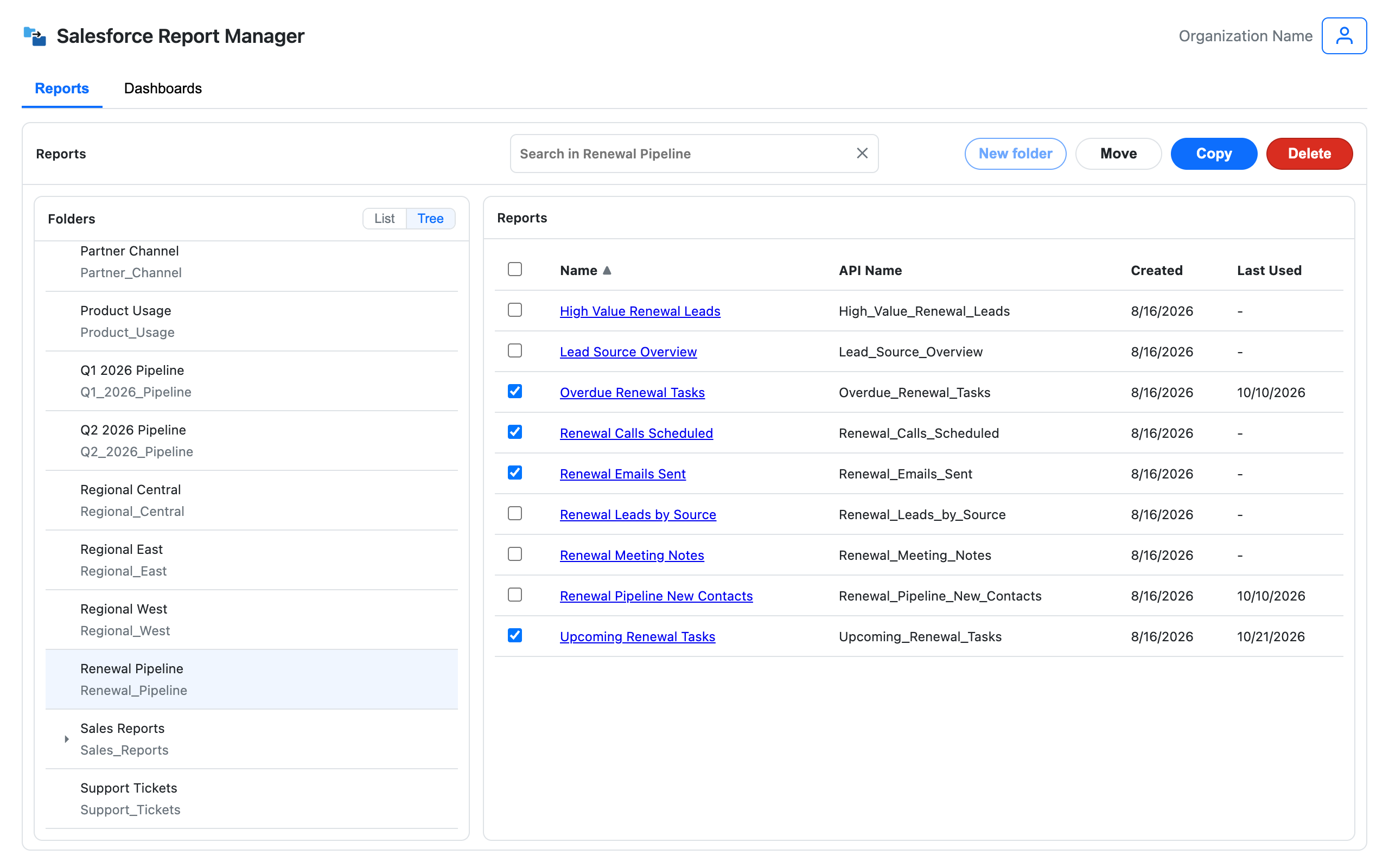
Save As duplicates a single report. SF Report Manager clones as many reports as you select, into the folder you choose, in one run, with a review step before anything changes in Salesforce.
Why bulk copy needs its own tool
How bulk copy works
Three steps, with a chance to check the exact scope before anything runs.
Select the reports you need
Browse the source folder, search or filter for the reports you want, and select as many as the job requires.
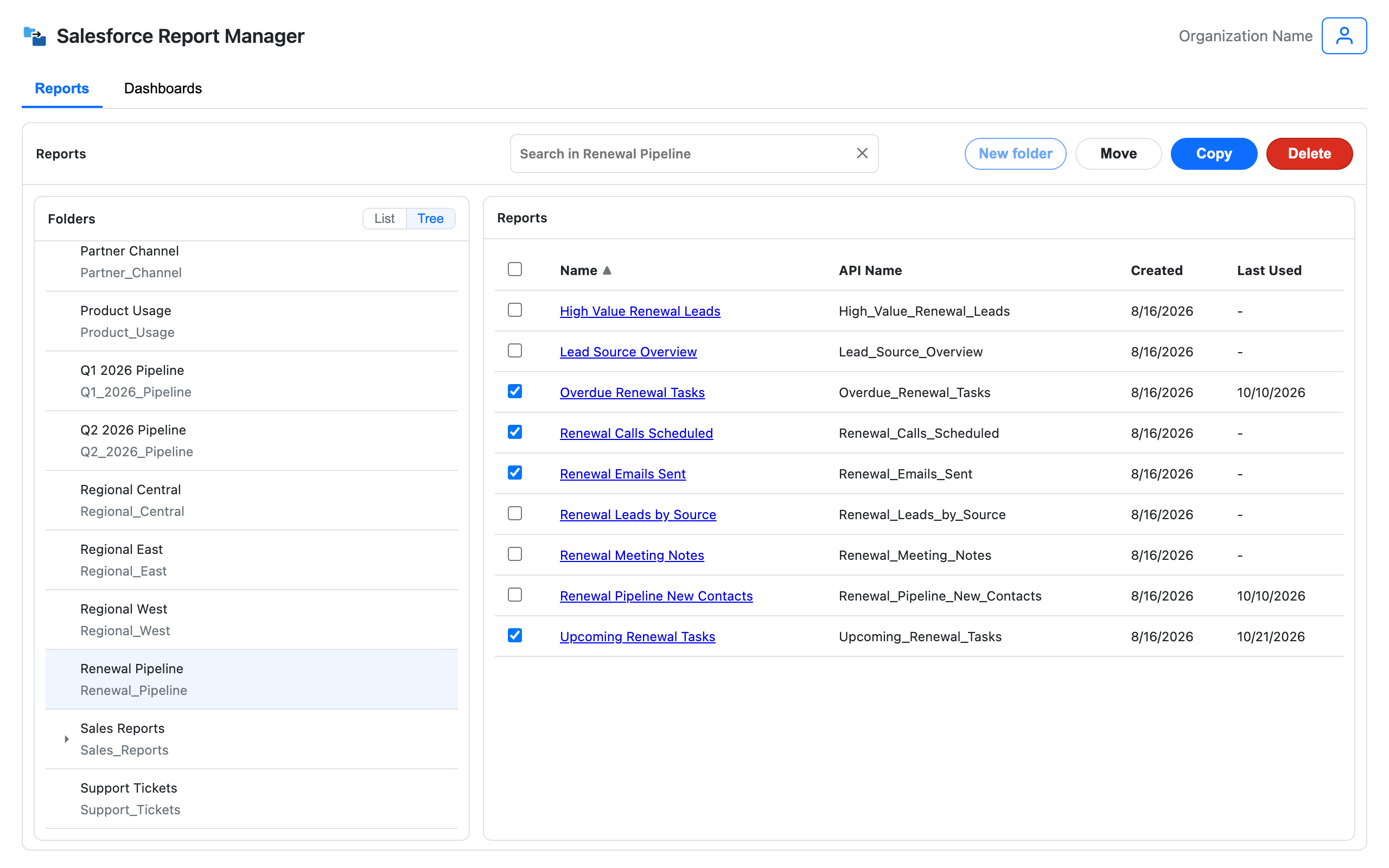
Choose the destination folder
Pick where the copies should live: a new team folder, a client folder, or wherever the new set belongs.
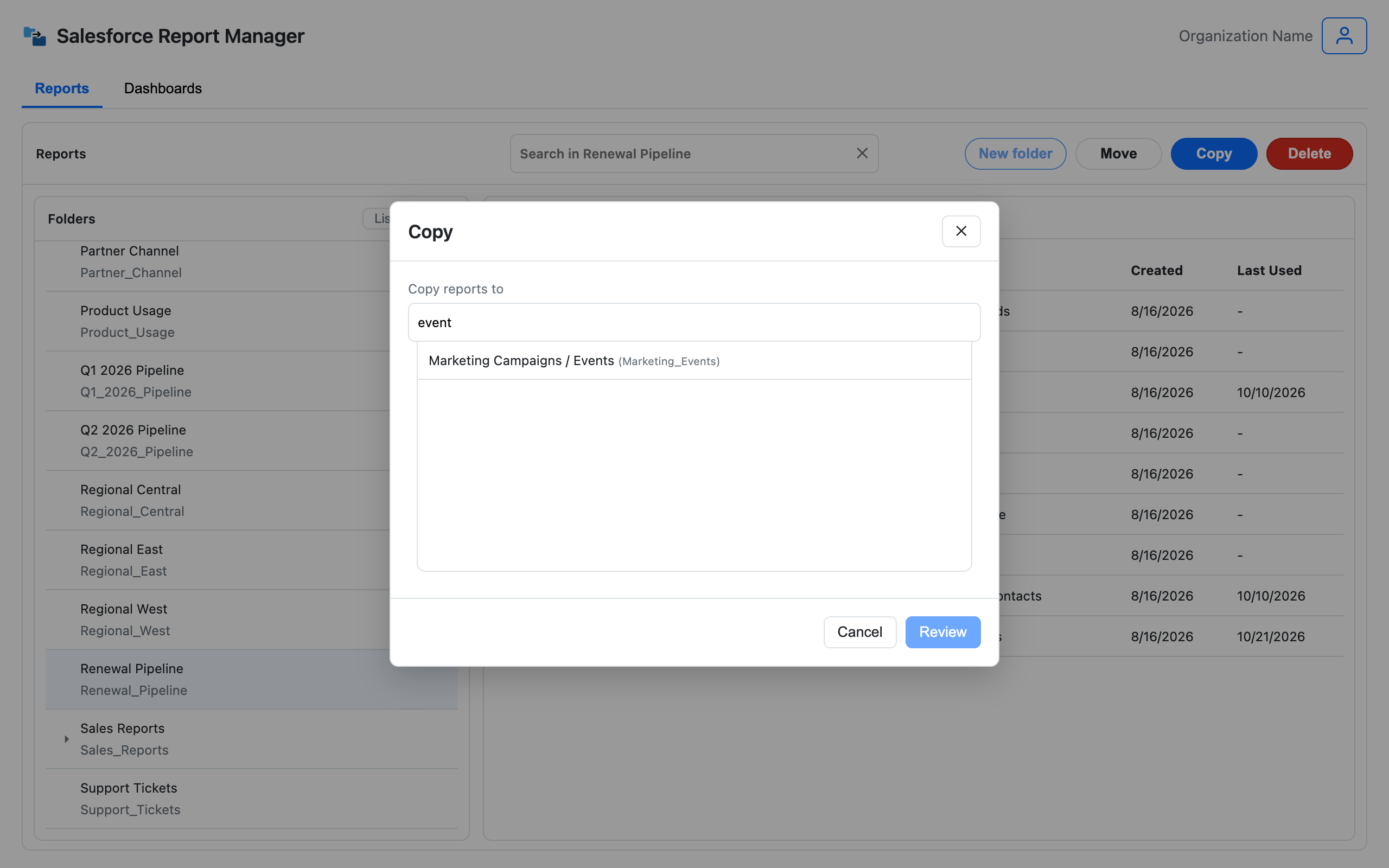
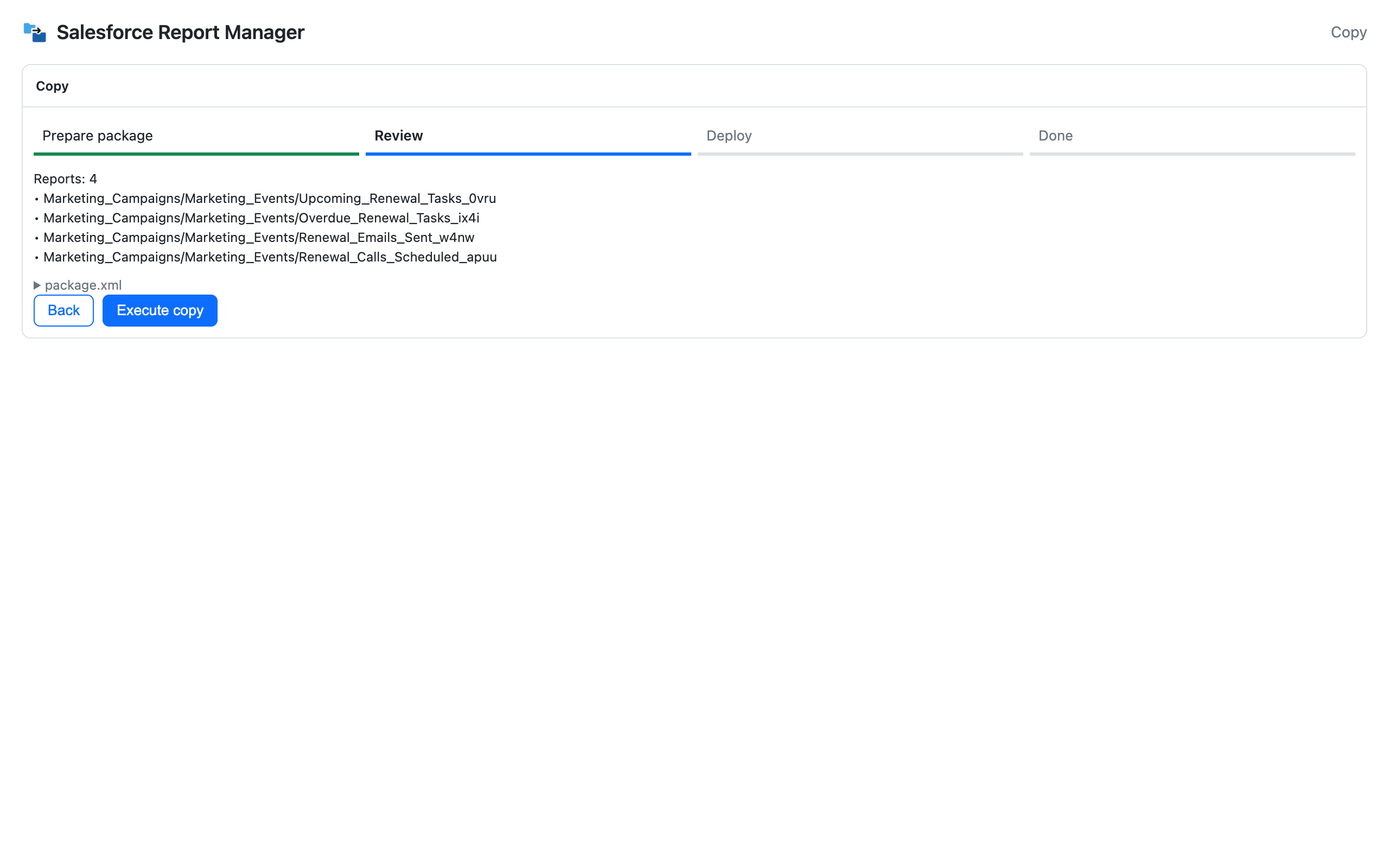
Review, then run the copy
Confirm the exact list of reports and the destination before anything is created in Salesforce. Run the batch and see a clear success and failure count when it finishes.
Where bulk copy earns its keep
New team and regional rollouts
Copy a report set that already works into the new folder first, then spend your time tailoring the copies instead of rebuilding the structure from scratch.
Everyday "copy these for me" requests
Handle the steady stream of admin requests without turning each one into a mini-project.
Client and consultant handoffs
Give every client or team a consistent starting report set, copied the same way every time.
FAQ
How do I duplicate a report in Salesforce?
For one report, open it and use Save As. For many, select them in SF Report Manager, pick the destination folder, review, and run. Every selected report is duplicated in a single batch.
Can I clone a report into another folder?
Yes. Cloning a report here means copying it into a folder you choose. The original stays where it is.
Can I mass copy Salesforce reports?
Yes. Select multiple reports from a folder, choose the destination folder, review the job, and run the copy in one batch.
Is there a limit on how many reports I can copy at once?
The Free plan supports up to 12 assets per operation. Pro removes that limit, so consultants and larger rollouts can copy unlimited assets in a single batch.
Does bulk copy work for dashboards too?
Reports and dashboards each have dedicated views. Report copy supports selected report sets in one batch. Dashboard copy currently runs one dashboard at a time and can include its source reports.
Does copying a report change its logic or filters?
No. SF Report Manager copies the report and its metadata. It does not rewrite your business logic, filters, or reporting definitions.
Does it follow my Salesforce permissions?
Yes. Copy operations use your authenticated Salesforce access — you can only copy from and into folders you already have access to.