Salesforce report manager
Manage Salesforce reports and dashboards without one by one work
Bulk copy Salesforce reports, move multiple reports or dashboards, delete stale clutter, and copy a dashboard together with the reports it depends on. SF Report Manager gives admins and consultants a focused Chrome workflow for reporting changes that should not take all afternoon.
Runs from your browser · Uses your Salesforce permissions · Security and data flow
Bulk report work should not become a clicking project
SF Report Manager is a Salesforce report and dashboard management tool for the folder work admins repeat: copy reports, move assets, delete stale items, and prepare dashboard copies across many reports or dashboards at once. It helps when native Salesforce turns cleanup, rollout, or maintenance work into opening assets one by one.
Copy report sets for new teams
Choose the reports that already work, copy them into the right folder, then tailor the copies after the repetitive work is done.
Copy or move dashboards with their reports
Make a real dashboard copy with new copies of the reports behind it, instead of leaving the new dashboard pointed at the original reports like native Salesforce does. Moving instead? Take dashboards along with their reports so nothing gets left behind.
Keep reporting folders in order
Move useful assets where they belong, remove stale copies, and handle regular housekeeping with a review step before anything changes in Salesforce.
How it works
Pick, review, run
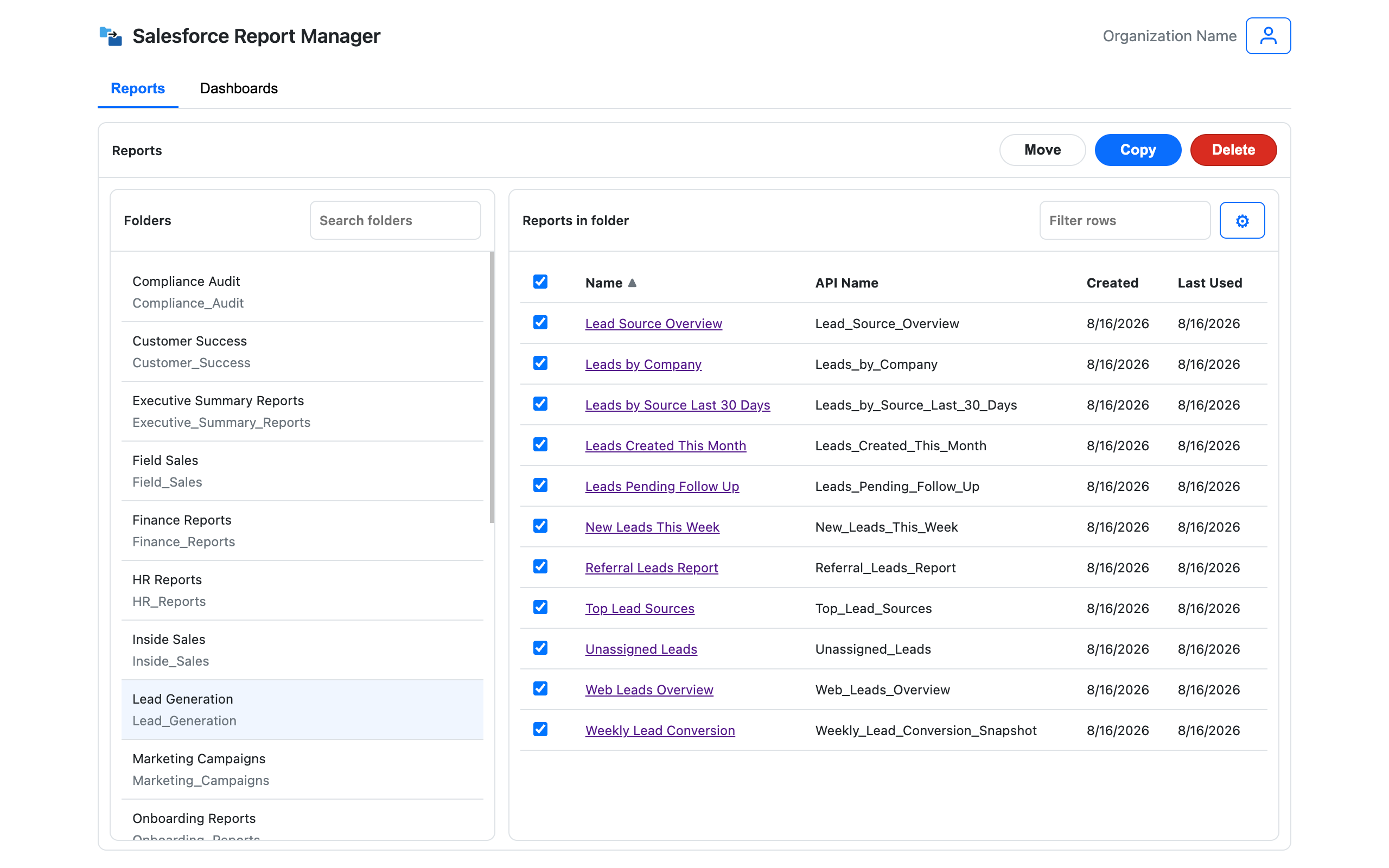
The extension keeps the workflow obvious. Choose a folder, select assets, decide the action, check the review screen, then run it with your current Salesforce access.
Start from Salesforce folders
Browse report and dashboard folders, search within them, filter rows, and select multiple assets for the job.
Choose the action and destination
Pick copy, move, or delete, then the destination folder. For dashboards, choose what happens to their reports too.
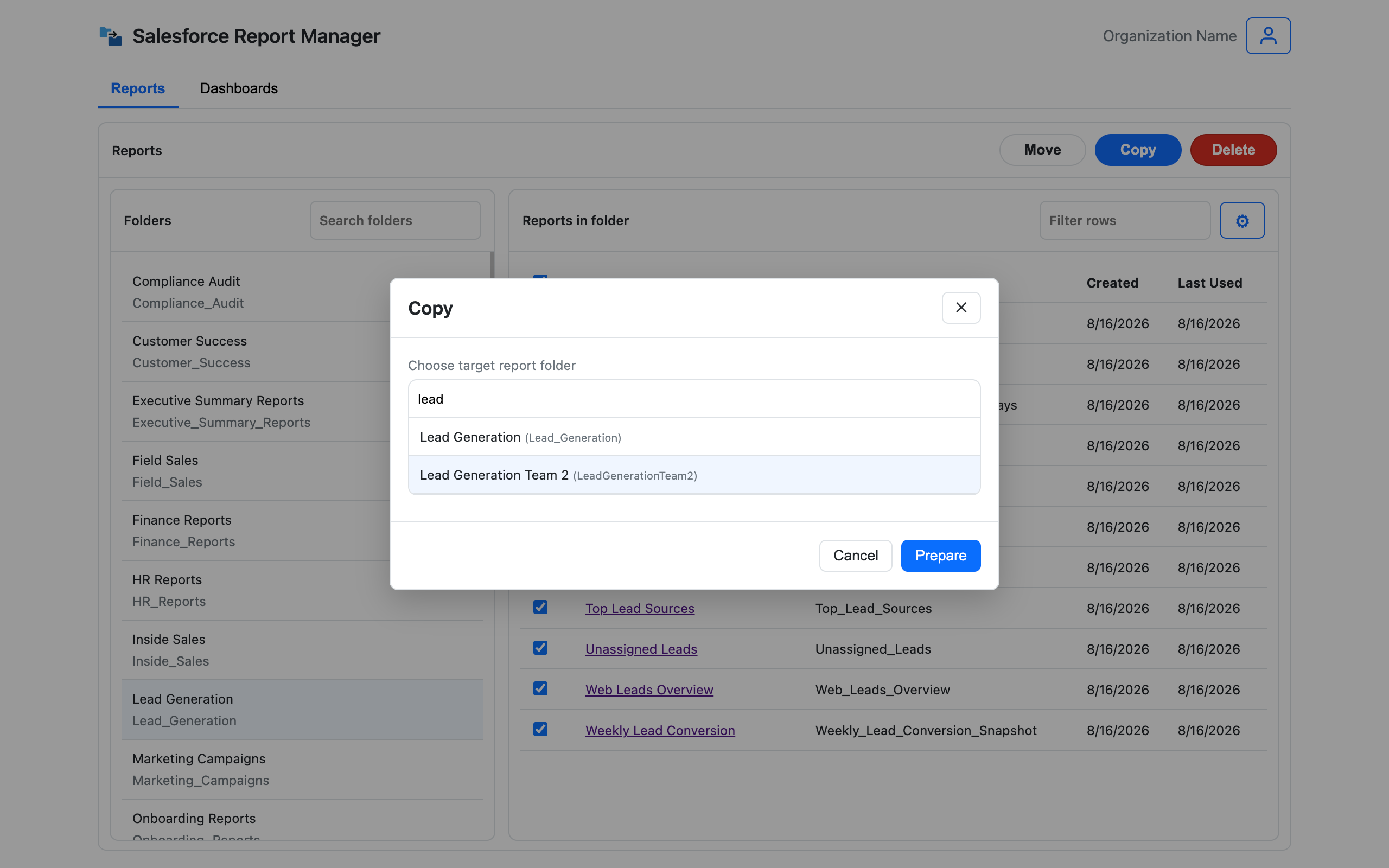
Review the exact scope
Check selected assets, target folders, and the generated metadata package. Move and delete actions also get a clear confirmation screen.
See what happened
When the job finishes, see success and failure counts so you know whether to continue, retry, or investigate.
Where it helps
Save hours on repeat report work
Most of the work is not hard. It is slow because Salesforce makes you open, copy, move, rewire, and check assets one by one.
Team and regional rollouts
Copy proven report sets into the right folder first, then spend your time tailoring the details instead of rebuilding the same structure.
Dashboard copies with report dependencies
Duplicate a dashboard with new copies of its source reports, so you are not stuck copying and rewiring each report by hand.
Folder cleanup after org changes
Move what is still useful, remove stale copies, and turn post-reorg cleanup into a reviewed batch job instead of a long afternoon in folders.
Everyday admin requests
Handle the steady flow of "copy these reports," "move those dashboards," and "make a version for my team" without turning each request into a mini-project.
Leadership reporting packs
Prepare focused folders for reviews, QBRs, pipeline meetings, and board reporting without leaving scattered duplicates for later.
Consultant handoffs and cleanup
Give consultants a repeatable way to organize report and dashboard assets before handoff, restructure, cleanup, or same-org migration prep.
Ready to run bigger jobs? View plans.
Security and FAQ
Who is SF Report Manager for?
Salesforce admins, consultants, RevOps teams, and power users who maintain report and dashboard folders, especially during cleanup, team changes, regional rollouts, and client handoffs.
Does it support both reports and dashboards?
Yes. Reports and dashboards have dedicated views. Report copy supports selected report sets. Dashboard copy is currently one dashboard at a time and can include the reports referenced by that dashboard.
Can I mass copy Salesforce reports?
Yes. Select multiple reports from a folder, choose the destination folder, review the job, and run the copy in one batch.
Can I duplicate a dashboard with its source reports?
Yes. Dashboard copy can prepare new copies of the underlying reports and update the copied dashboard package so it points to the new report set.
Can it copy dashboards in bulk?
Not yet. Move and delete can run on selected dashboards, but dashboard copy currently supports one dashboard per operation because the extension also prepares the referenced reports and rewrites the copied dashboard package.
What happens to a dashboard's reports when I copy, move, or delete it?
You choose. By default the reports go along: they are copied or moved to a report folder you pick, or deleted with the dashboard. Tick "Leave reports in place" and only the dashboards are touched. The screen explains what will happen before you run anything.
Does it change report logic?
No. SF Report Manager manages report and dashboard assets, folders, and metadata packages. It does not rewrite your business logic, filters, or reporting definitions for you.
Does it follow Salesforce permissions?
Yes. Operations use your authenticated Salesforce access. You can only act on assets and folders your Salesforce user can access.
How does authentication work?
Salesforce authentication uses OAuth and your browser session. Your Salesforce password is never exposed to the extension.
Is any data sent externally?
Core report and dashboard operations run from your browser against Salesforce APIs. Optional account, billing, and telemetry details are covered in the privacy policy.
Is this an official Salesforce product?
No. SF Report Manager is an independent Chrome extension. Salesforce is a trademark of Salesforce, Inc.